
To connect Affiracle to your Wix store, follow these 4 simple steps:
- Script implementation on all site pages
- Script implementation on the Thank You page
- Adding an HTML Embed element to the Thank You page
- Sending order details from the page code
Step 1 - Implementing the script on all site pages
- Log in to your Wix Dashboard.
- Go to:
Settings -> Custom Code.
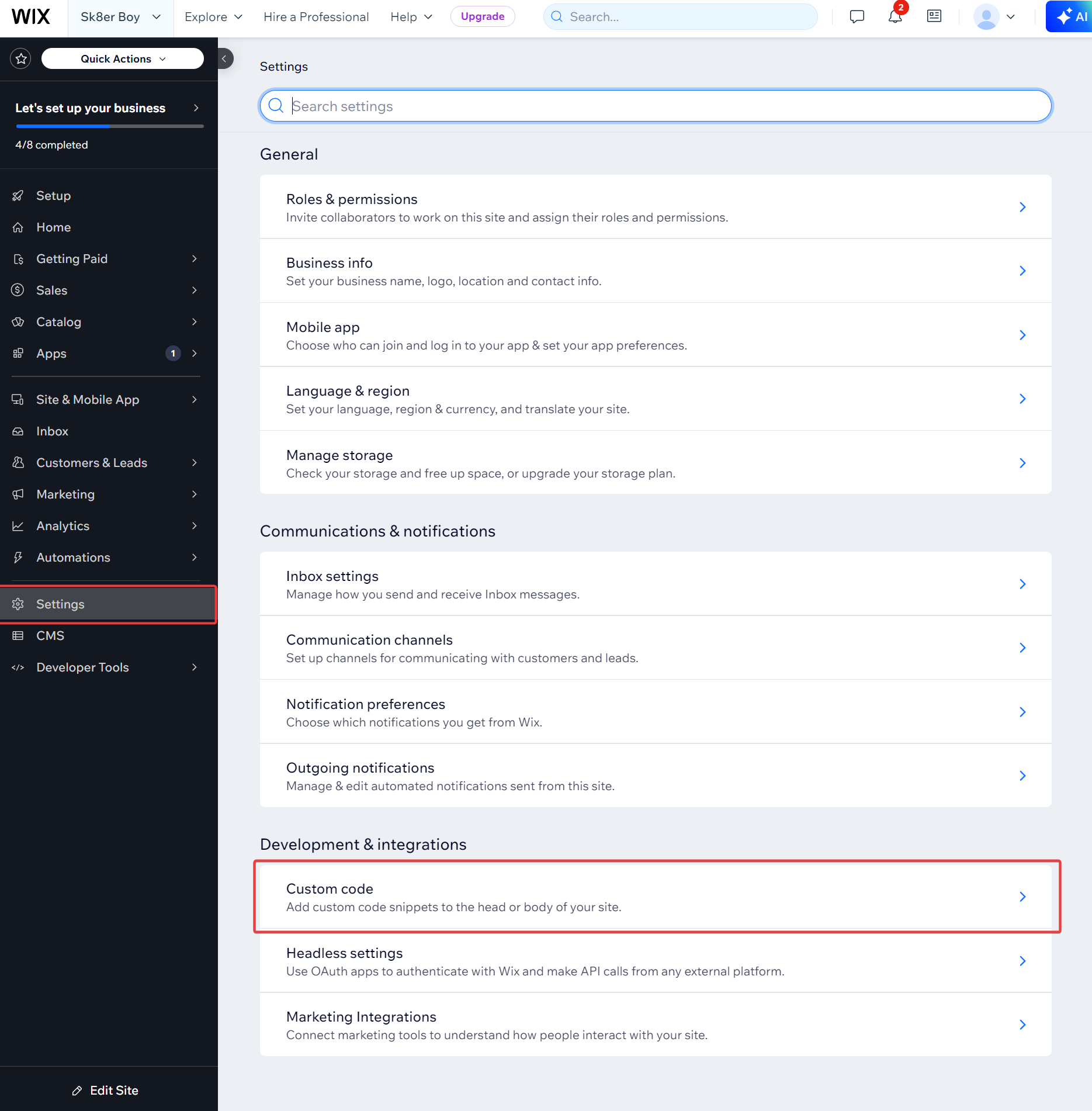
- Click Add Custom Code.
- Paste the following code:
<script src="https://miracle.affiracle.com/YOUR_STORE_ID.js"></script>- Name the code: Affiracle - All Pages
- Select All Pages and check Load code once.
- Select location:
Head.
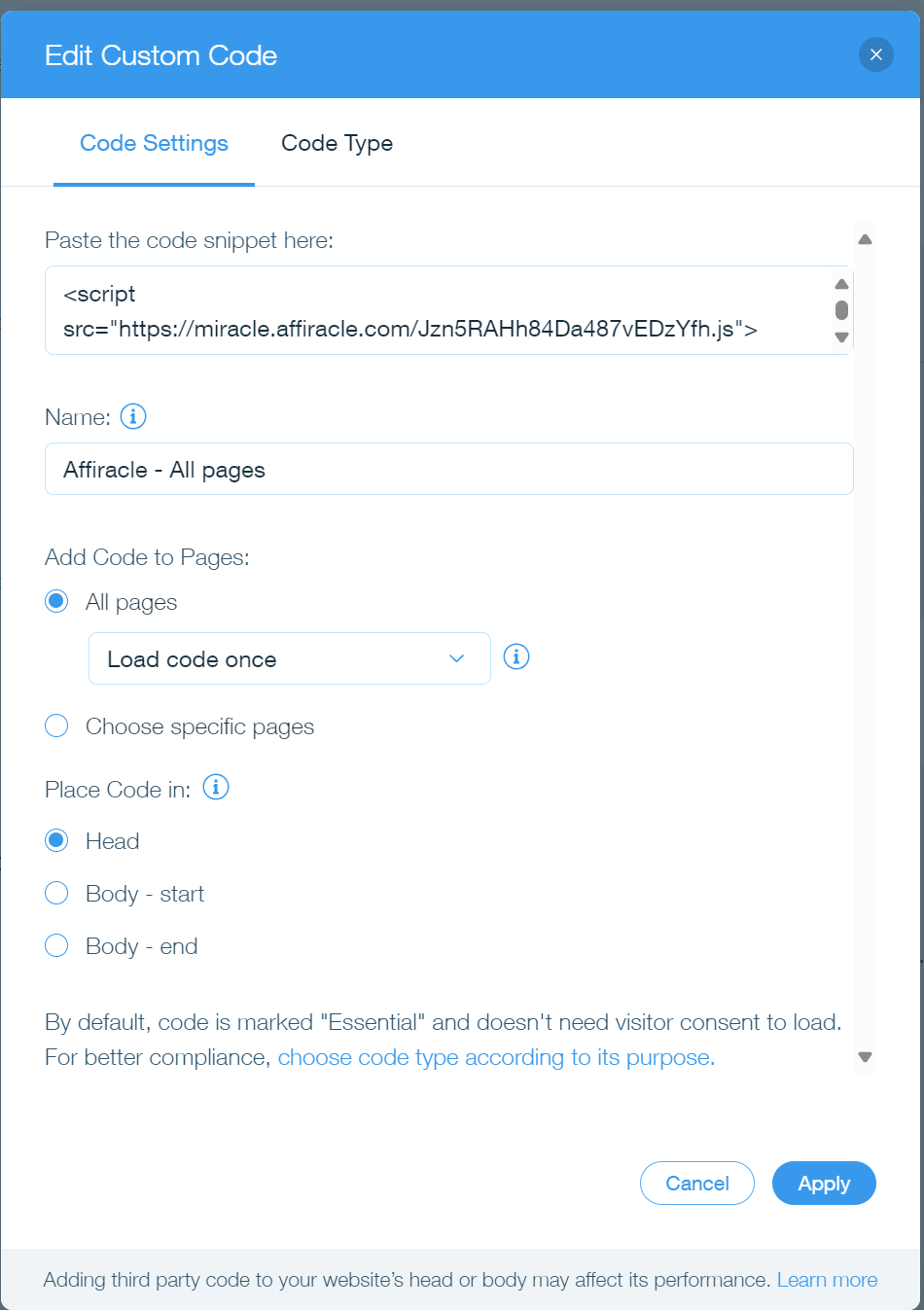
- Click Apply.
Step 2 - Implementing the script on the Thank You page
- In the same Custom Code screen, click Add Custom Code again.
- Paste the following code:
<script src="https://affiracle.com/wix-custom-code.js"></script>- Name the code: Affiracle Embed - Thank You Page
- Select Specific Pages.
- Select the Thank You Page.
- Select location:
Body - End.
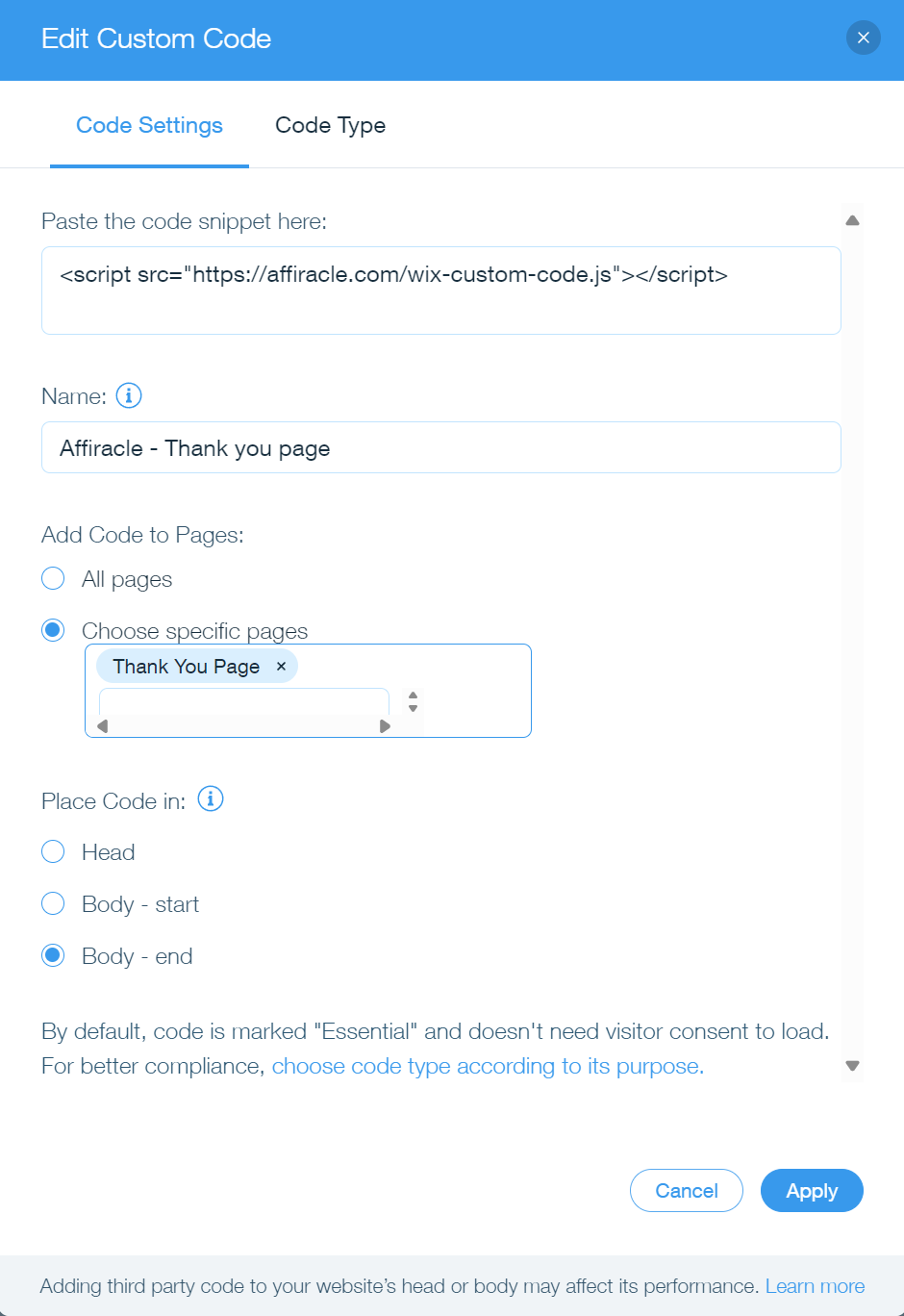
- Click Apply.
Step 3 - Adding an Embed element to the Thank You page
- Open the Wix Editor.
- Go to the Pages menu -> Thank You Page.
- Add an element:
Embed -> HTML iframe.
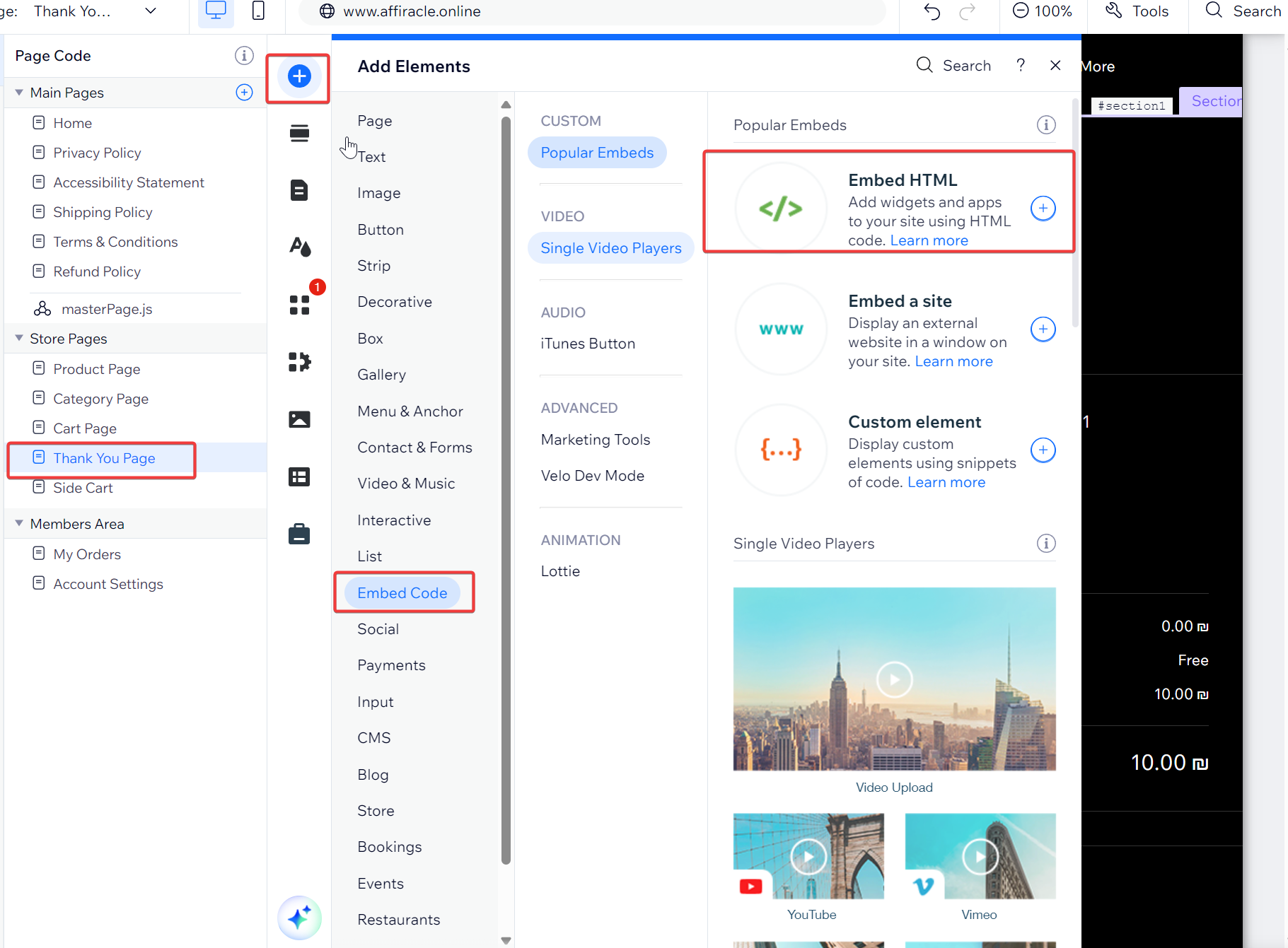
- Inside the element, paste the following script:
<script src="https://affiracle.com/wix-embed.js"></script>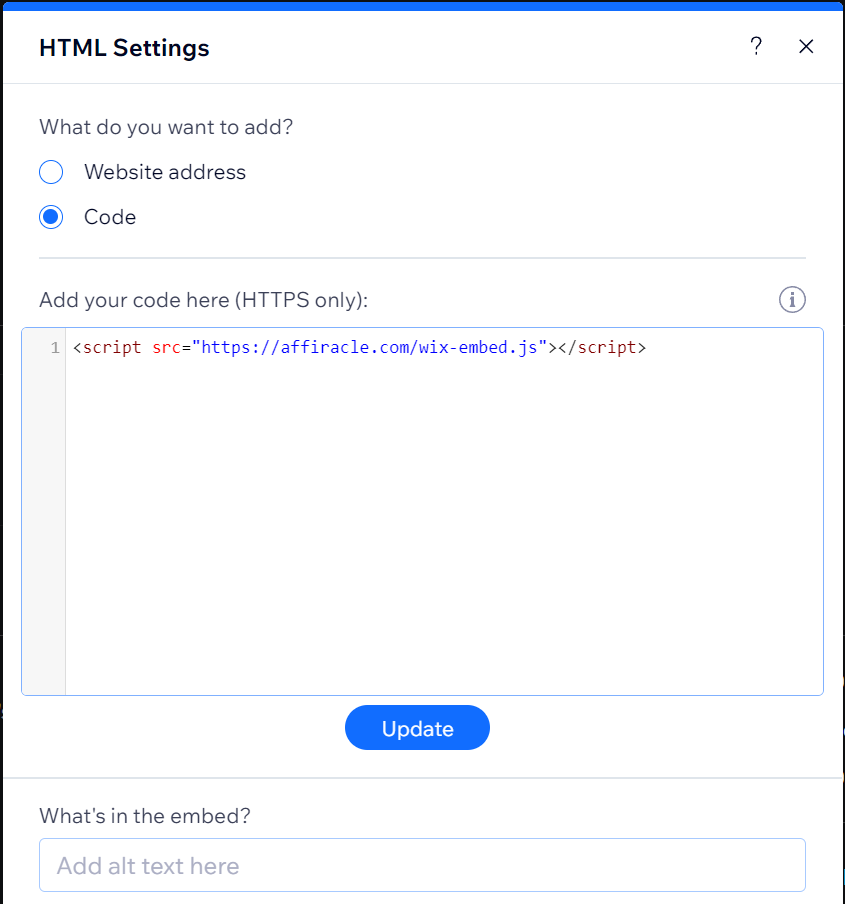
Step 4 - Sending order data from the Page Code
- Inside the Wix Editor, click the Dev Mode button and turn it on if it isn't active yet.
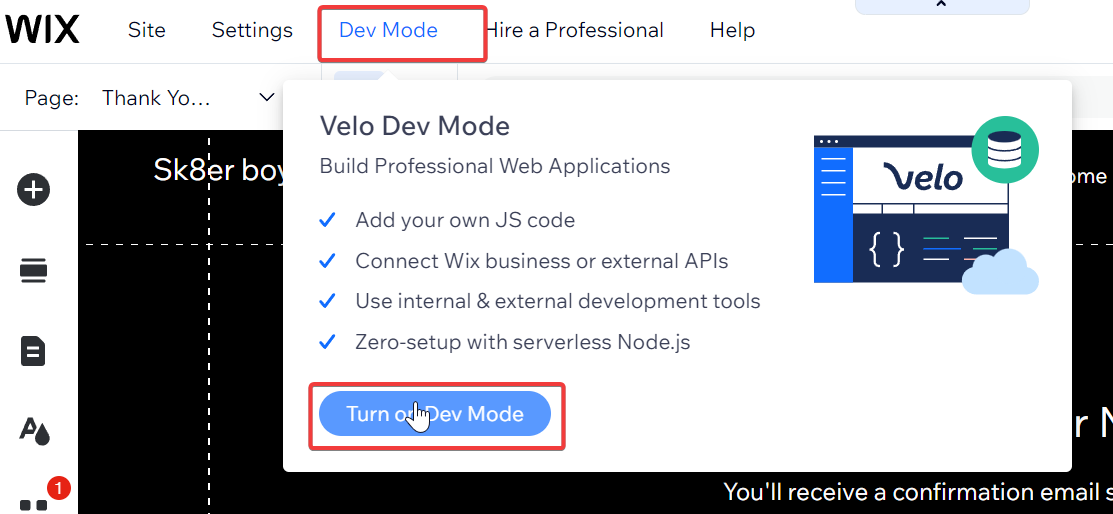
- Make sure you are on the Thank You Page.
- Paste the following code into the Page Code section:
$w.onReady(function() { $w('#thankYouPage1').getOrder() .then((order) => { $w('#html1').postMessage(order); }) .catch((error) => {});});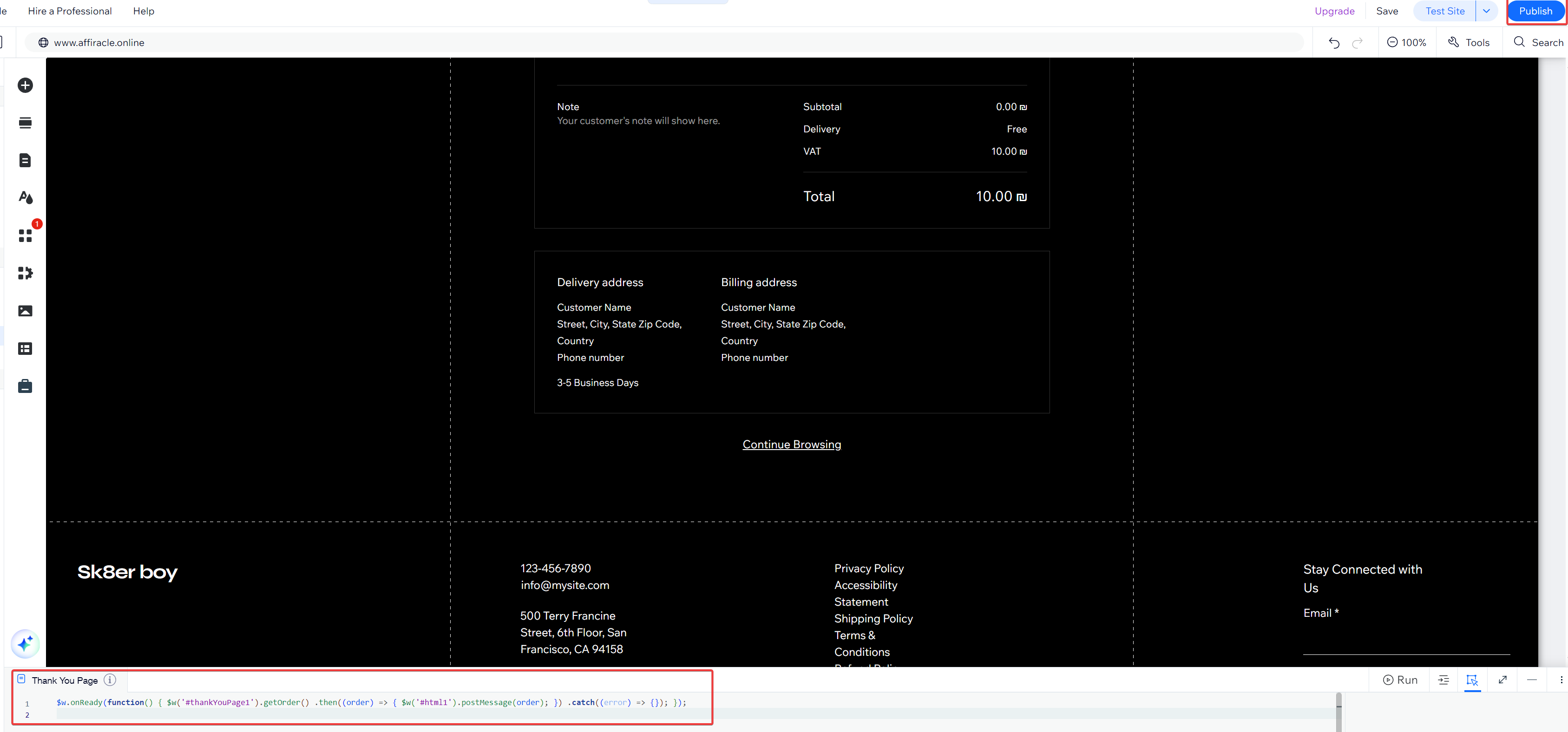
🚀 We're Done!
That's it, the connection was successful! 🎉
Now you can proceed to create your first campaign and start measuring actual sales.
Encountered a problem?
Contact us via the Support Chat in the bottom right corner, and we'll be happy to help.