
If you haven't yet registered for promotion campaigns, you can do so now. Read the explanation here.
If you are already registered for promotion campaigns, you can head over to the Campaigns page to view the various available options.

Locate the campaign you wish to promote and click the Links button.
In the screen that opens, you will receive the primary link to the store's homepage. Additionally, you can generate a link that points to a specific internal page within the store if you wish.
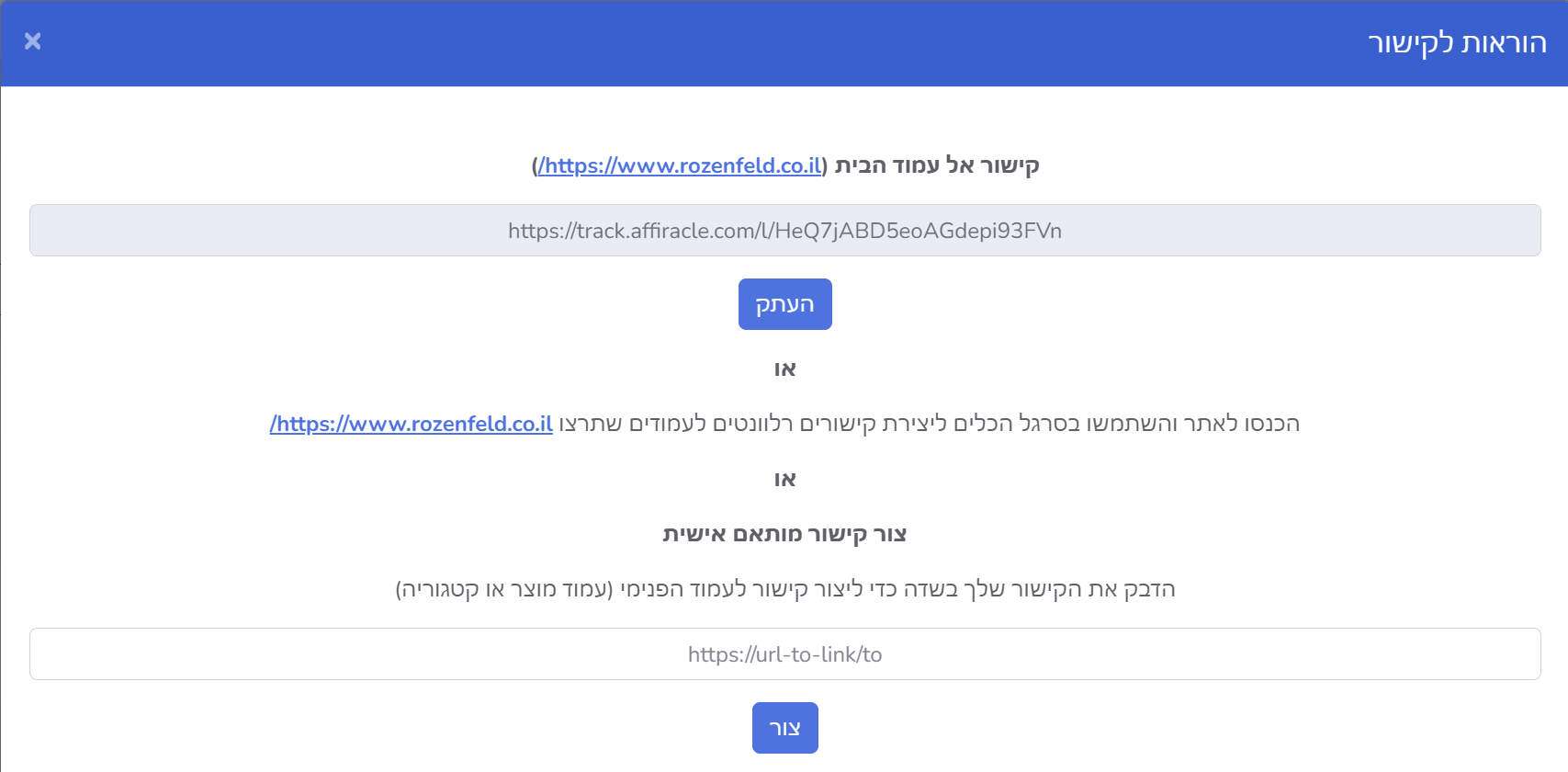
To create a link that directs users to a specific page, paste the URL into the link field and click the Create button.

Immediately afterward, a link pointing to your chosen page will be generated. All that's left is to click the Copy button and use this link to promote the campaign.
Creating Links from Within the Store
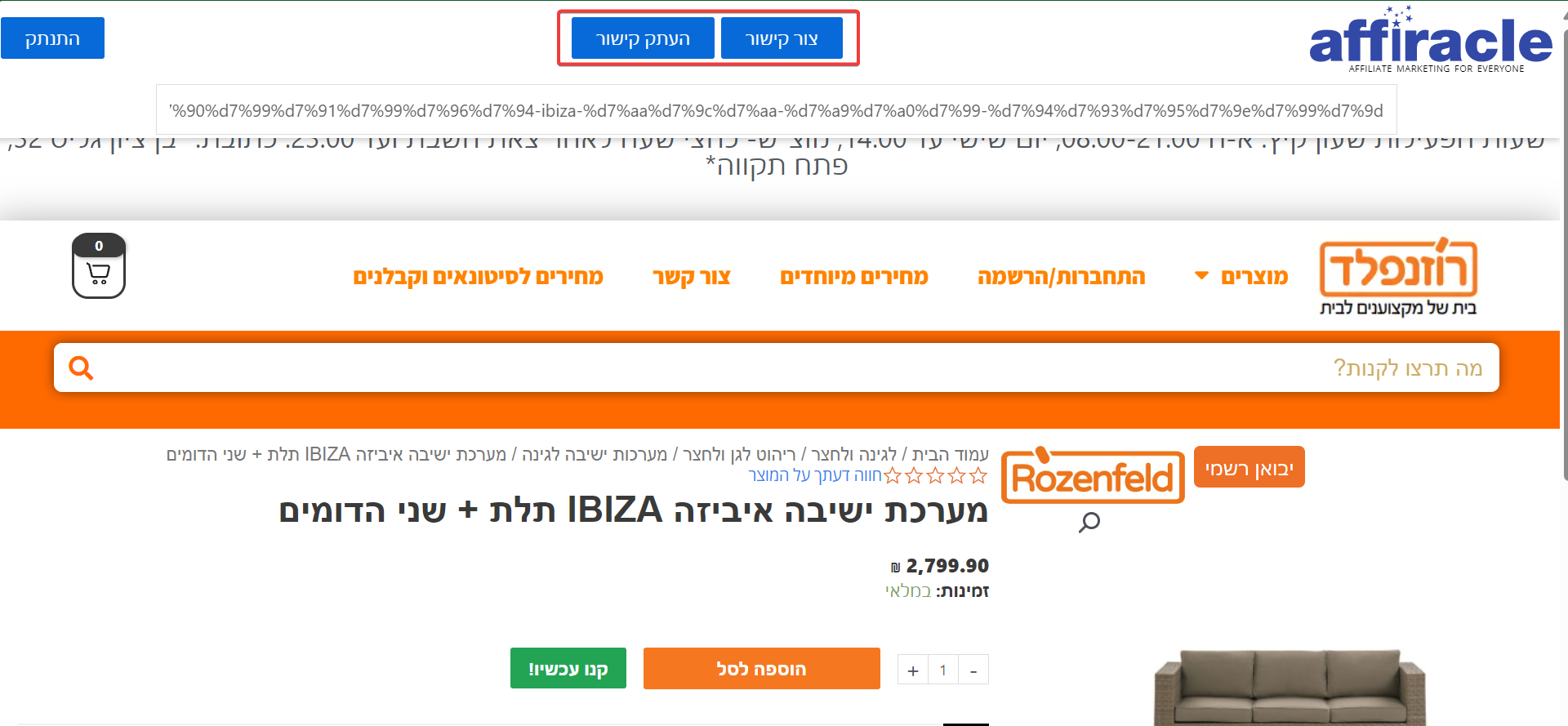
If you want to generate links to internal pages within the store (for example, a specific product or category page), you can enter the store via the Homepage Link. Once there, a toolbar will be available, allowing you to create links directly for the page you are currently viewing.
How to Create Links and Maximize Your Affiliate Marketing with Affiracle
In this video, you will learn how to create customized links for stores and campaigns in Affiracle, how to choose specific products or pages for advertising, and how to use links for tracking and earnings. Start maximizing your profits now!